

Google News alerts (also called Google company news alerts when you’re tracking a competitor) are one of the fastest ways to monitor what’s being published about your brand or any topic you care about. You can set one up in under two minutes at google.com/alerts: type your search term, choose “News” as the source, pick a delivery frequency, and hit “Create Alert.”
That’s it. Google emails you whenever it finds new news articles matching your query.
But here’s what most guides won’t tell you: Google Alerts catches only a fraction of what’s actually published. The tool hasn’t changed much in over a decade, and its coverage has notable blind spots, especially for brand monitoring across AI search, social media, and niche publications.
If you’re relying solely on Google News alerts for reputation management or competitor intelligence, you’re working with an incomplete picture. This guide walks through the full setup process, how to write alert queries that actually return relevant results, and what to do when Google Alerts isn’t enough.
What You’ll Learn
For teams searching the official Google alerts create alert 2026 documentation or how to set up Google alerts step by step 2026, this guide mirrors the official Google alerts setup workflow with the practical decisions Google’s help docs leave out (which delivery time to pick, when to use exact-match keyword wrapping, how to throttle high-volume alerts).
- Step-by-step setup for Google News alerts, including advanced query tricks most people skip
- How to customize alert frequency, sources, and delivery to reduce noise
- Where Google Alerts falls short, and what to pair it with for full brand coverage
- How to monitor brand mentions across AI search platforms like ChatGPT and Perplexity, not just traditional news
What Is a Google News Alert?
A Google News alert is an automated email notification that Google sends when it indexes new content matching a search query you’ve defined. When you restrict the source to “News,” the alert filters results to news publications and major editorial outlets indexed by Google News.
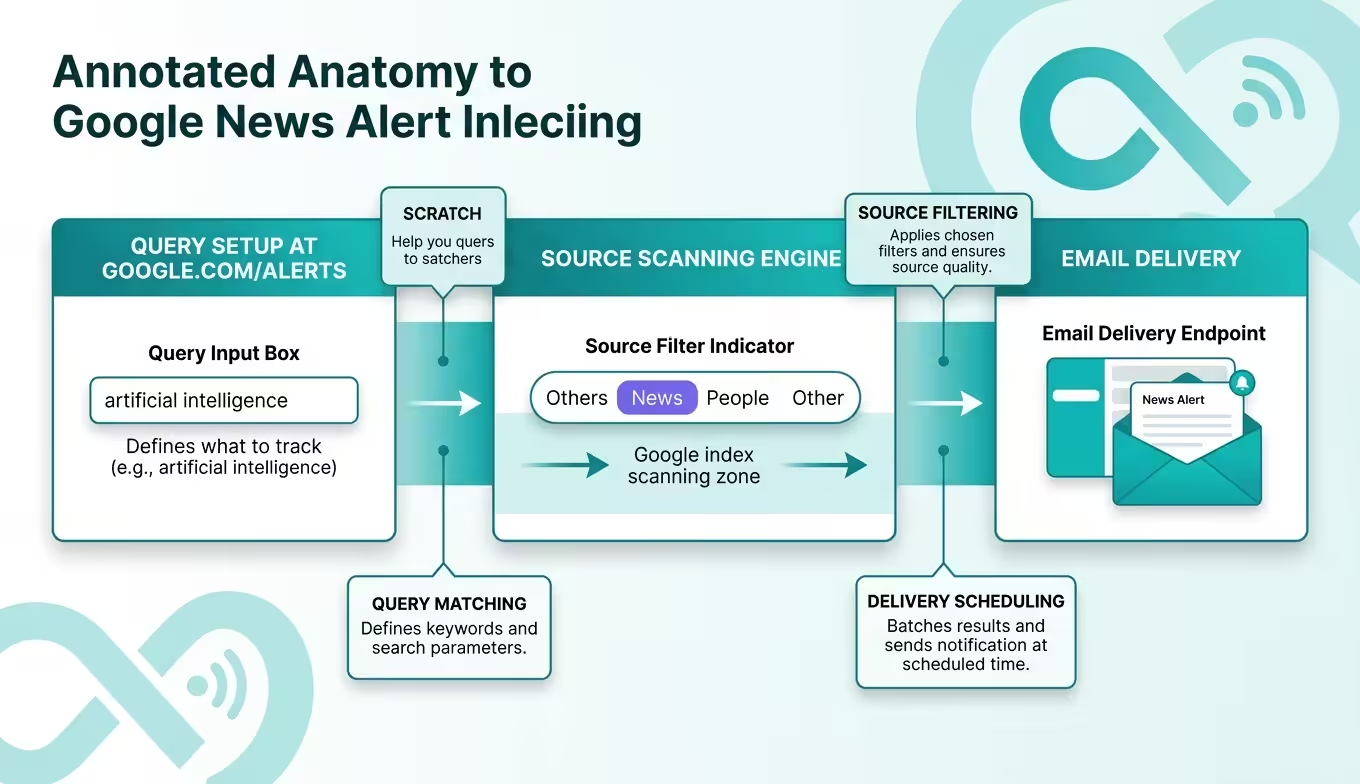
Google Alerts itself is a free monitoring service that’s been around since 2003. You don’t need any special software, just a Google account and a web browser. The tool scans Google’s index on your chosen schedule and delivers matching results to your inbox.
The distinction between “Google Alerts” and “Google News alerts” trips people up. Google Alerts is the tool. A Google News alert is what you get when you set the source filter to “News” within that tool. You can also track blogs, web results, video, books, discussions, and finance, or leave it on “Automatic” to pull from all sources.
How to Create a Google News Alert: Step by Step
The whole process takes about 90 seconds. Here’s exactly what to do.
1. Sign Into Your Google Account
Go to google.com/alerts. If you’re not already logged in, sign in with the Gmail address where you want to receive alerts.
2. Enter Your Search Term
Type your keyword, brand name, or phrase into the search bar at the top. A preview of results will appear below so you can check relevance before committing.
3. Click “Show Options.”
This expands the customization panel, and it’s where most people stop too early. Don’t skip this step.
4. Set the Source to “News.”
Under “Sources,” select “News” from the dropdown. This restricts your alert to Google News, indexed publications instead of the entire web.
5. Choose Your Frequency
Options are “As-it-happens,” “At most once a day,” or “At most once a week.” For brand monitoring, daily works for most teams. As-it-happens can flood your inbox on high-volume topics.
6. Select Language and Region
Choose “English” and “United States” if you’re tracking U.S. coverage. You can create separate alerts for other regions.
7. Pick “Only the Best Results” or “All Results.”
“Only the best results” applies a quality filter. For brand monitoring, start with “All results”, you don’t want Google deciding what’s important about your brand.
8. Set the Delivery Email
Confirm the correct email address, or add an alternative. You can also deliver alerts to an RSS feed instead.
9. Click “Create Alert.”
Done. Your alert is now active.
You can create up to 1,000 alerts per Google account. There’s no cost involved, the entire service is free.
How to Write Better Alert Queries
The filter discipline we watch for most: teams set up 10 alerts on week one and then never prune them. Six months later the alerts fire 30 times a day and no one opens the email.
Review alert volume monthly. Any alert generating more than 5 irrelevant results a week should either get tighter query operators or get deleted.
The query you type determines whether you get useful results or a wall of irrelevant noise. Most people type a single word and wonder why their alerts are useless.
Use Exact-Match Quotes for Multi-Word Terms
If you’re tracking your company name, wrap it in quotation marks: "Acme Software". Without quotes, Google matches pages containing “Acme” and “Software” separately, which pulls in every unrelated mention of either word.
Exclude Noise With the Minus Operator
If your brand shares a name with something unrelated, add exclusions: "Mercury" -planet -retrograde -NASA. This removes results about the planet Mercury from alerts about your brand.
Use the OR Operator for Variations
Track multiple brand name spellings or product names in one alert: "BrandName" OR "Brand Name" OR "brandname.com". Each variation catches mentions the others would miss.
Restrict to Specific Sites When Needed
Want alerts only from a particular publication? Use site:techcrunch.com "your brand". This is useful for tracking coverage on outlets that matter most to your audience.
A pattern we watch for in monitoring campaigns: brands that set up generic, unrefined alerts abandon them within two weeks because of inbox overload. The ones that invest five extra minutes crafting precise queries keep using them for months.
Query Examples That Actually Work
| Goal | Query | Why It Works |
|---|---|---|
| Track your brand | "Acme Software" OR "AcmeSoft" |
Catches both name formats, exact match only |
| Monitor a competitor | "Competitor Inc" -jobs -careers |
Filters out job postings that flood results |
| Track industry news | "AI visibility" OR "AI brand mentions" |
Covers multiple terms in one alert |
| Watch a specific outlet | site:reuters.com "your industry term" |
Limits results to one trusted source |
| Monitor your CEO | "Jane Smith" "Acme Software" |
Requires both terms to appear together |
How to Edit or Delete an Existing Alert
Go to google.com/alerts. You’ll see a list of every active alert tied to your account.
To edit, click the pencil icon next to any alert. The same customization panel opens, change the query, source, frequency, or delivery method and hit “Update Alert.” To delete, click the trash icon. Gone. You can also unsubscribe from a specific alert by clicking “Unsubscribe” at the bottom of any alert email, which removes that single alert without affecting others.
If you’ve accumulated dozens of alerts over time, audit them quarterly. Delete any that consistently deliver irrelevant results or cover topics you no longer track. Stale alerts just train you to ignore your inbox.
Why Google News Alerts Miss More Than You Think
Google Alerts is a useful starting point. It’s also noticeably limited, and those limitations have gotten more significant as the media landscape has fragmented.
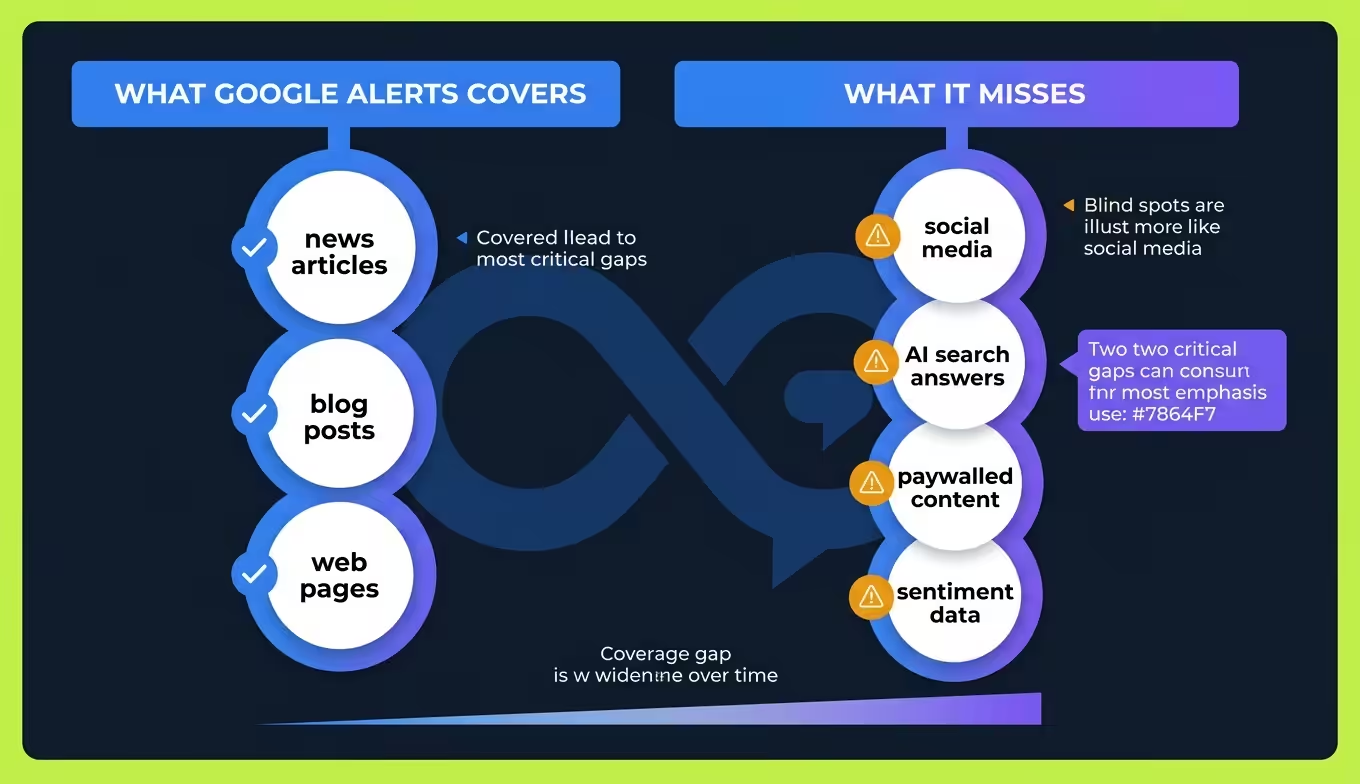
Google Alerts only monitors content indexed by Google. It doesn’t track social media posts, podcast mentions, private forums, paywalled articles, or content generated by AI platforms like ChatGPT, Perplexity, or Gemini. For brand monitoring in 2026, that’s a large and growing blind spot.
Coverage Is Inconsistent
Google Alerts doesn’t catch every matching article, even ones that show up in a manual Google News search. The service has no SLA and no transparency about how it selects results, so some articles appear days late and others never appear.
No Sentiment Analysis
You’ll know someone mentioned your brand. You won’t know whether they praised it or criticized it unless you click through and read every result, and for teams managing reputation at scale, that manual review burns hours.
No Competitive Benchmarking
Google Alerts tells you when your brand is mentioned. It can’t tell you how your mention volume compares to competitors, or whether your brand share of conversation is growing or shrinking.
Zero AI Search Visibility
This is the gap that matters most in 2026. When someone asks ChatGPT or Perplexity “What’s the best project management tool?”, the answer isn’t pulled from Google’s index.
It’s generated from training data and real-time sources that Google Alerts can’t see. If your brand is recommended, or missing, from those AI-generated answers, a standard Google alert won’t tell you.
What to Pair With Google Alerts for Full Coverage
The AI-mention layer most teams miss: dedicated tools that track your brand inside ChatGPT, Perplexity, Gemini, and Google AI Overviews responses. Our guide to the best ChatGPT monitoring tools compares 10 platforms across pricing and coverage.
Google Alerts should be one layer of your monitoring stack, not the entire thing. Here’s how to fill the gaps without overcomplicating your workflow.
Social Listening Tools
Platforms like Hootsuite, Sprout Social, and Brandwatch track mentions across Twitter/X, LinkedIn, Instagram, Reddit, and other social channels that Google Alerts ignores completely. If your audience discusses your brand on social media, and they almost certainly do, you need a social media monitoring tool running alongside your Google alerts.
AI Search Monitoring
This is the layer most brands still haven’t built. AI search platforms generate answers from sources that traditional monitoring tools don’t watch. Tracking whether ChatGPT, Gemini, or Perplexity mentions your brand requires specialized tools designed for AI search visibility monitoring.
At BrandMentions, we track AI-generated citations across multiple LLMs to help brands understand where they’re being recommended and where competitors are appearing instead. Google Alerts can’t touch this layer, it wasn’t built for it.
Dedicated Brand Monitoring Platforms
Tools like Mention, dedicated brand monitoring platforms, and Talkwalker Alerts offer faster indexing, broader source coverage, sentiment scoring, and competitive comparisons. They cost more than free, but for any brand where reputation or competitive positioning matters, the investment pays for itself in saved time alone.
Sending Google Alerts to a Work Email
Google Alerts defaults to sending notifications to the Gmail address you’re signed in with. If you need alerts delivered to a work email, you’ve two options.
Option 1: Add Your Work Email as an Alternate
Go to your Google Account settings, then Personal info, then Contact info, then Email. Add your work address and verify it, and it appears as a delivery option when creating or editing alerts.
Option 2: Set Up Gmail Forwarding
Create a Gmail filter that matches emails from [email protected] and auto-forwards them to your work address. This keeps your alert management in one place while delivering results wherever you need them.
Check your spam folder if verification emails don’t arrive, corporate email filters regularly catch Google’s verification messages.
Google Alerts vs. Google News Alerts: The Difference
People use these terms interchangeably, but they’re not the same thing.
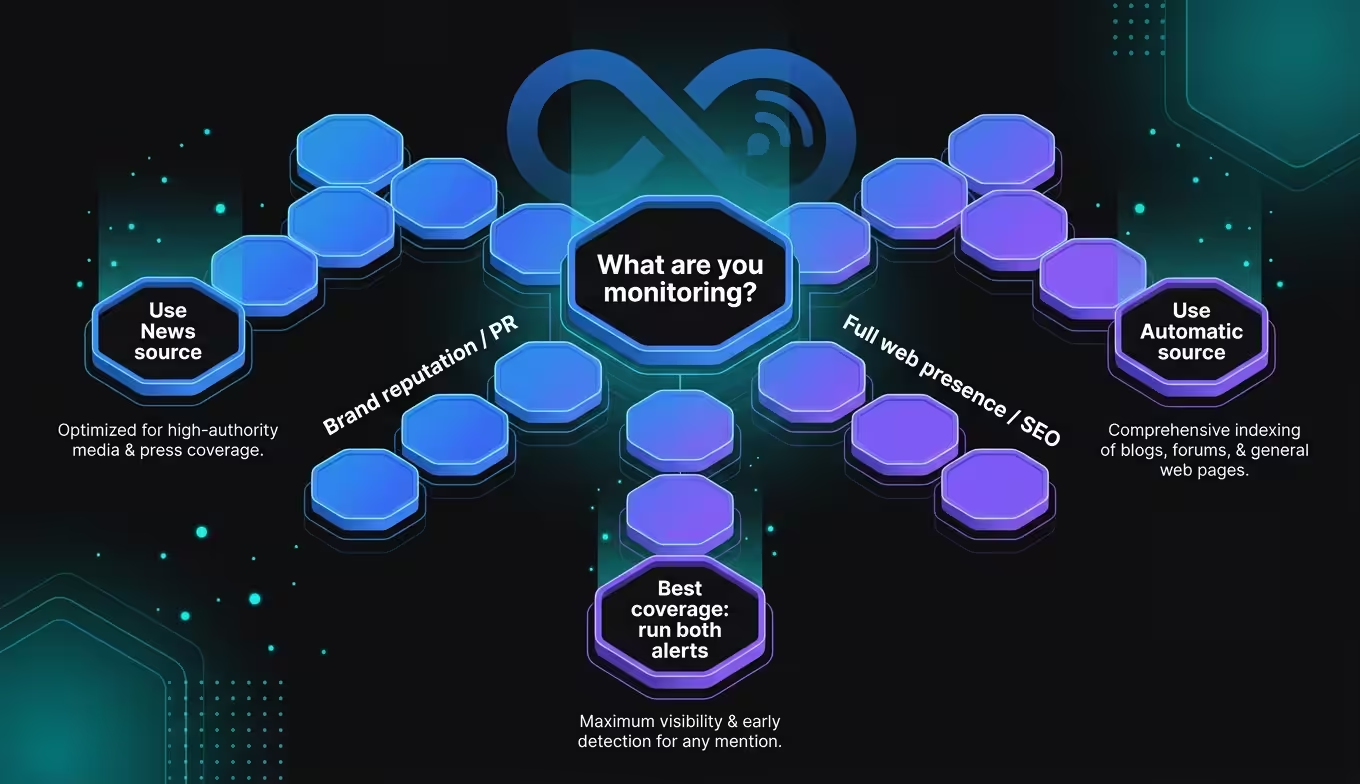
Google Alerts (Source: Automatic)
Scans everything Google indexes: news sites, blogs, forums, web pages, videos, and books. It casts a wide net.
Google News Alerts (Source: News)
Restrict results to publications indexed by Google News: editorial news outlets and major publications, not personal blogs, forum threads, or random web pages.
Which should you use? For brand reputation monitoring, start with News as your source. News coverage carries more weight with stakeholders and is more likely to influence public perception. Create a separate alert with “Automatic” source if you also want to catch blog mentions, forum discussions, and other web content. Running both gives you better coverage than either alone.
Fixing Common Google Alert Problems
The hidden cause of most “my alerts stopped working” tickets we see isn’t Google, it’s account drift. A team creates alerts under someone’s personal Google account, that person leaves, and the alerts keep firing to an abandoned inbox for months before anyone notices the stack has gone dark. Create all brand alerts under a shared marketing Gmail or Google Workspace account with at least two reviewers, not a personal account.
Alerts that don’t deliver, deliver junk, or deliver too late, these are the three complaints that come up constantly. Here’s how to fix each one.
Alerts aren’t arriving
First, check that you’re logged into the right Google account at google.com/alerts. If your alert was created under a different account, it won’t show up.
Second, check your spam folder, since Gmail sometimes filters its own alert emails. Add [email protected] to your contacts to prevent this.
Third, verify the alert isn’t paused. The toggle next to each alert on the alerts page shows its active/inactive status.
Results are irrelevant
Your query is too broad. Add quotation marks around multi-word phrases. Add exclusion terms with the minus operator. Switch from “All results” to “Only the best results” temporarily to see if Google’s quality filter helps. If the tool still returns noise, the term itself may be too generic for useful alerting.
Results arrive too late
Switch frequency to “As-it-happens.” Be aware that even this setting isn’t truly real-time, Google batches alerts, and delays of several hours are normal. If you need genuinely fast notifications for crisis monitoring or PR response, Google Alerts alone isn’t built for that speed. You’ll need a dedicated media alert service with faster indexing.
Frequently Asked Questions
Is a Google News alert the same as a Google Alert?
Not exactly. A Google News alert is a Google Alert with the source set to “News.” Google Alerts is the broader tool that can monitor news, blogs, web, video, books, discussions, and finance. When you choose “News” as the source, you narrow results to editorial news publications indexed by Google News.
Can I create a Google News alert without a Gmail account?
You need a Google account, but it doesn’t have to be Gmail. Any Google account, including one created with a work email via Google Workspace, works. Sign in at google.com/alerts and your alerts will be tied to that account.
How many Google Alerts can I create?
You can create up to 1,000 alerts per Google account at no cost. In practice, most individuals use 5, 15 alerts. Brands actively monitoring competitors, executives, and industry terms typically run 20, 50.
Do Google Alerts track social media mentions?
No. Google Alerts only monitors content indexed by Google’s web crawler. It doesn’t track mentions on Twitter/X, LinkedIn, Instagram, TikTok, or Reddit (except for Reddit threads that happen to appear in Google’s web index). For social monitoring, you need a separate social listening tool.
Can Google Alerts tell me if AI chatbots mention my brand?
No. Google Alerts has no visibility into what ChatGPT, Perplexity, Gemini, or other AI platforms say about your brand. These platforms generate answers from training data and real-time retrieval systems that sit outside Google’s index. Monitoring AI-generated brand mentions requires purpose-built tools, something we cover in depth in our guide on checking if AI mentions your brand.
How do I create a Google News alert in 2026 with the latest settings?
Google Alerts hasn’t changed its core flow in 2026, but source quality and frequency options now matter more. Go to google.com/alerts, enter your search query, select “Sources: News,” set “Frequency: As-it-happens” for breaking news or “Once a day” for digest mode, and choose “Best results” instead of “All results” to filter low-quality content.
What free analytics tools track Google brand mentions?
Google Alerts is the baseline free tool: it emails you when your brand name appears in indexed web content. For deeper free analytics, combine Google Alerts with Google Search Console, which tracks branded query impressions and rankings, and Google Trends, which tracks branded search interest over time. The gap shows up in real-time social mentions and AI search citations, which need dedicated paid tools.
Moving From News Alerts to AI-Layer Coverage
Setting up Google News alerts is a solid first move. It’s free, fast, and gives you a baseline awareness of what’s being published about your brand or industry. Worth doing? Absolutely.
But the information environment in 2026 extends far beyond what Google indexes. AI-generated answers are shaping purchase decisions before buyers ever reach a search engine results page. Prospects are asking ChatGPT for software recommendations. Investors are querying Perplexity about market trends. Your brand is either part of those answers or it isn’t, and no Google alert will tell you which.
Start with Google Alerts for news coverage. Layer in social listening for community conversations. And build visibility monitoring for AI search if you want the full picture of where your brand shows up, and where it’s missing.
If you want to know exactly what AI search engines currently say about your brand, request a quick AI visibility audit. We’ll run 25 category-relevant prompts across ChatGPT, Perplexity, Gemini, and Google AI Overviews so you can see the gap between what Google indexes and what AI is actually surfacing to buyers.