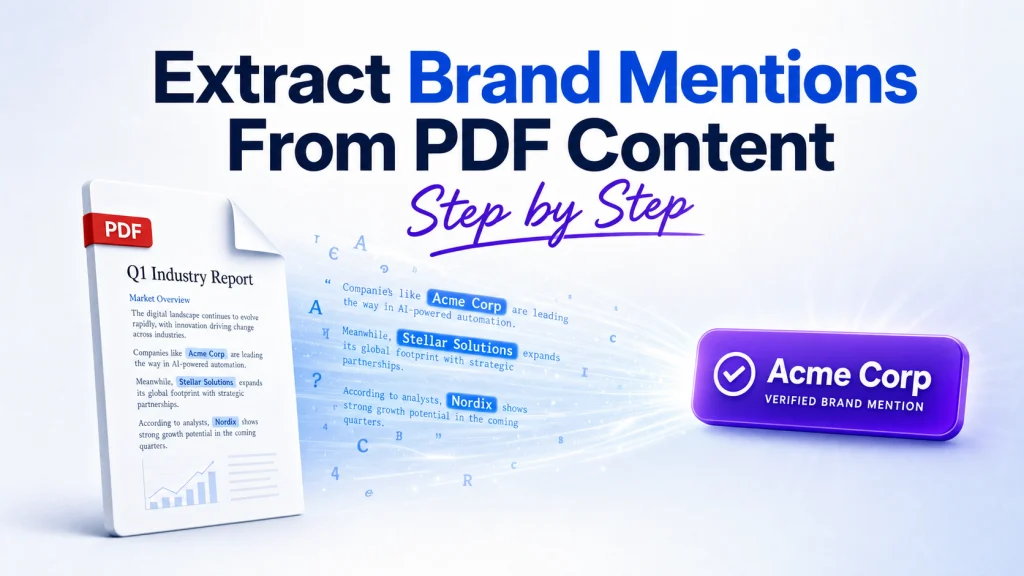

If you need a clean list of brand mentions from a 200-page PDF, start by checking whether the file even has a usable text layer. The best extraction method depends on the PDF type: digital files give up their text directly, scanned files need optical character recognition, and mixed files need both. Get that classification wrong and you will spend hours fighting your tools when the real problem is the file.
This guide walks the full workflow: classify the PDF, pull the text cleanly, run OCR when needed, match brand names with aliases and entity recognition, then validate and export results you can trust across hundreds of files.
Most guides on this topic jump straight to a tool and skip the part that actually decides accuracy. The detection logic and the cleanup are where brand-mention work succeeds or fails, so that is where this one spends its time.
What You Need Before You Start
Three things make or break this workflow before you extract a single line. Gather them first, because starting without them is the most common reason teams waste a day re-running jobs.
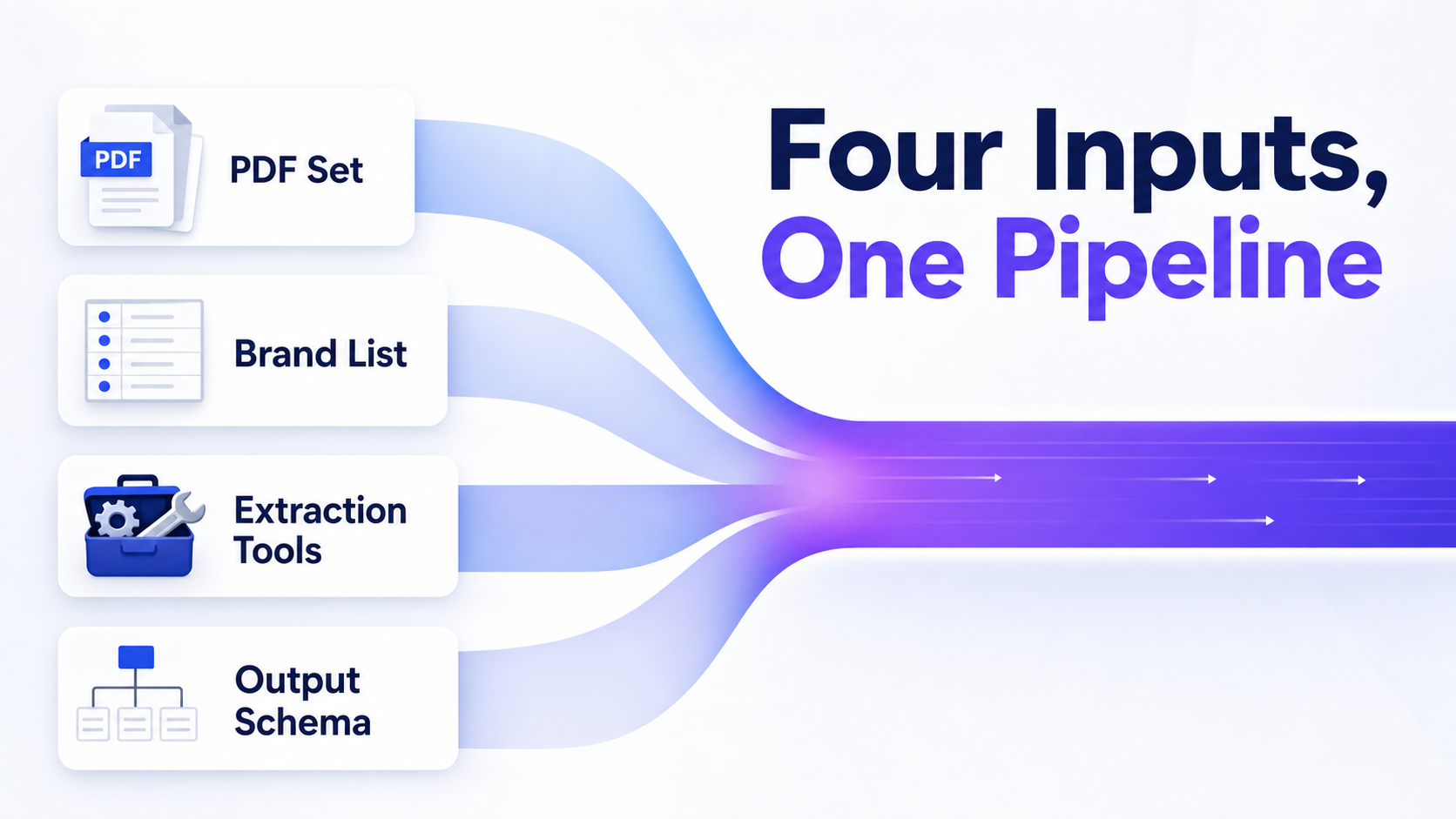
- A sample set of PDFs, sorted into folders by source, date, or project so bulk runs stay traceable.
- A brand master list with official names, aliases, abbreviations, and known misspellings.
- A defined place and format for output, decided before extraction, not after.
You will also need a few tool categories, not one specific product. A PDF parser or library handles native text. An OCR engine handles scans. A keyword matcher and an optional Python or AI stack handle detection and scale. If you plan to automate, set up API access and local dependencies now, so a missing key does not stall a 300-file batch halfway through.
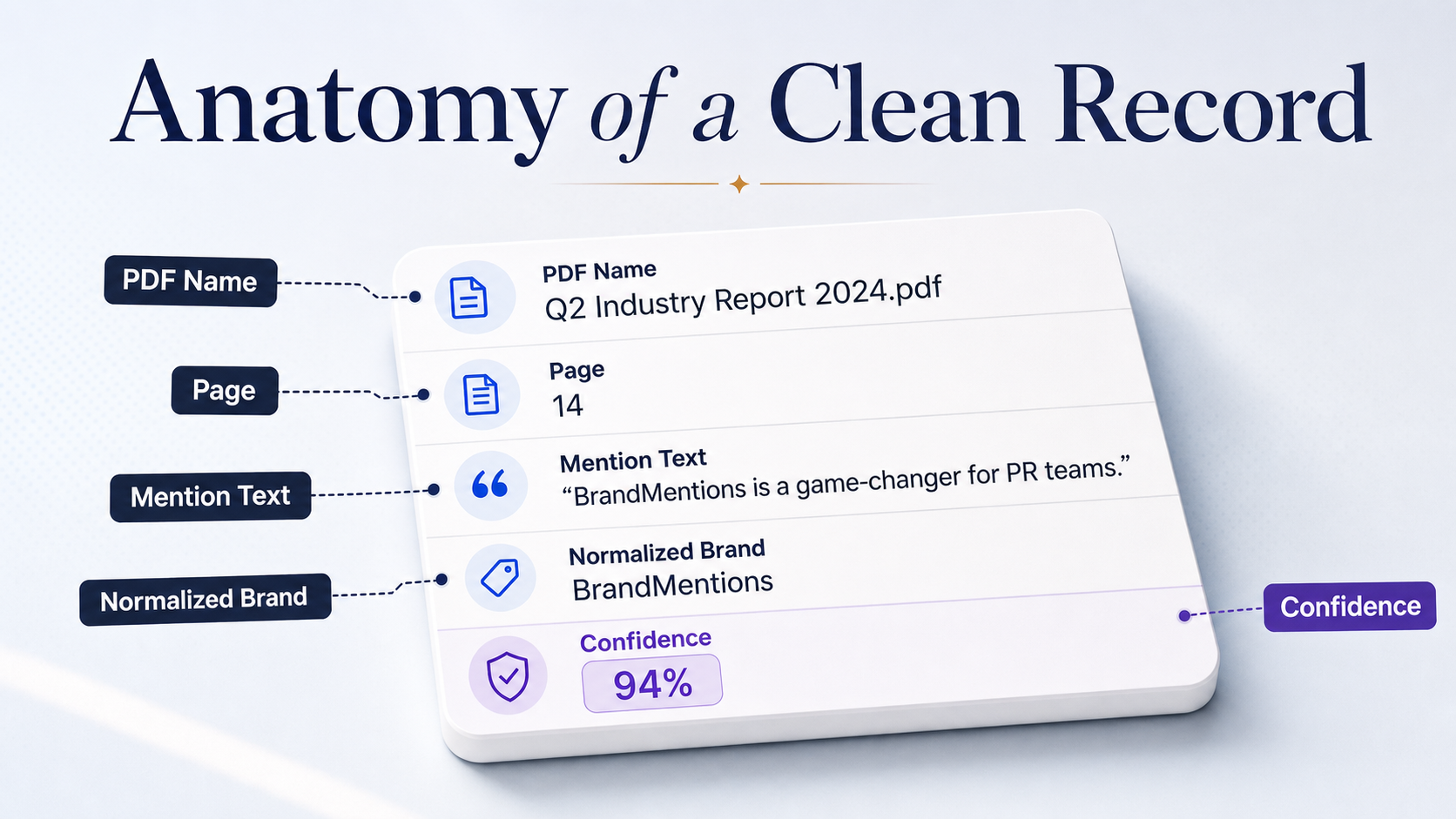
Lock the output schema upfront: PDF name, page number, matched string, normalized brand name, and a confidence or review status. In production audits, teams lose the most time when they start extracting before they have a standardized alias list and a fixed output format. Decide the columns first, and every later step has somewhere clean to land.
Classify the PDF Type Before You Extract Anything
The fastest way to ruin an extraction job is using one method for every file. Classifying the PDF first tells you which workflow to run, and it takes under a minute.
Step 1: Test for selectable text
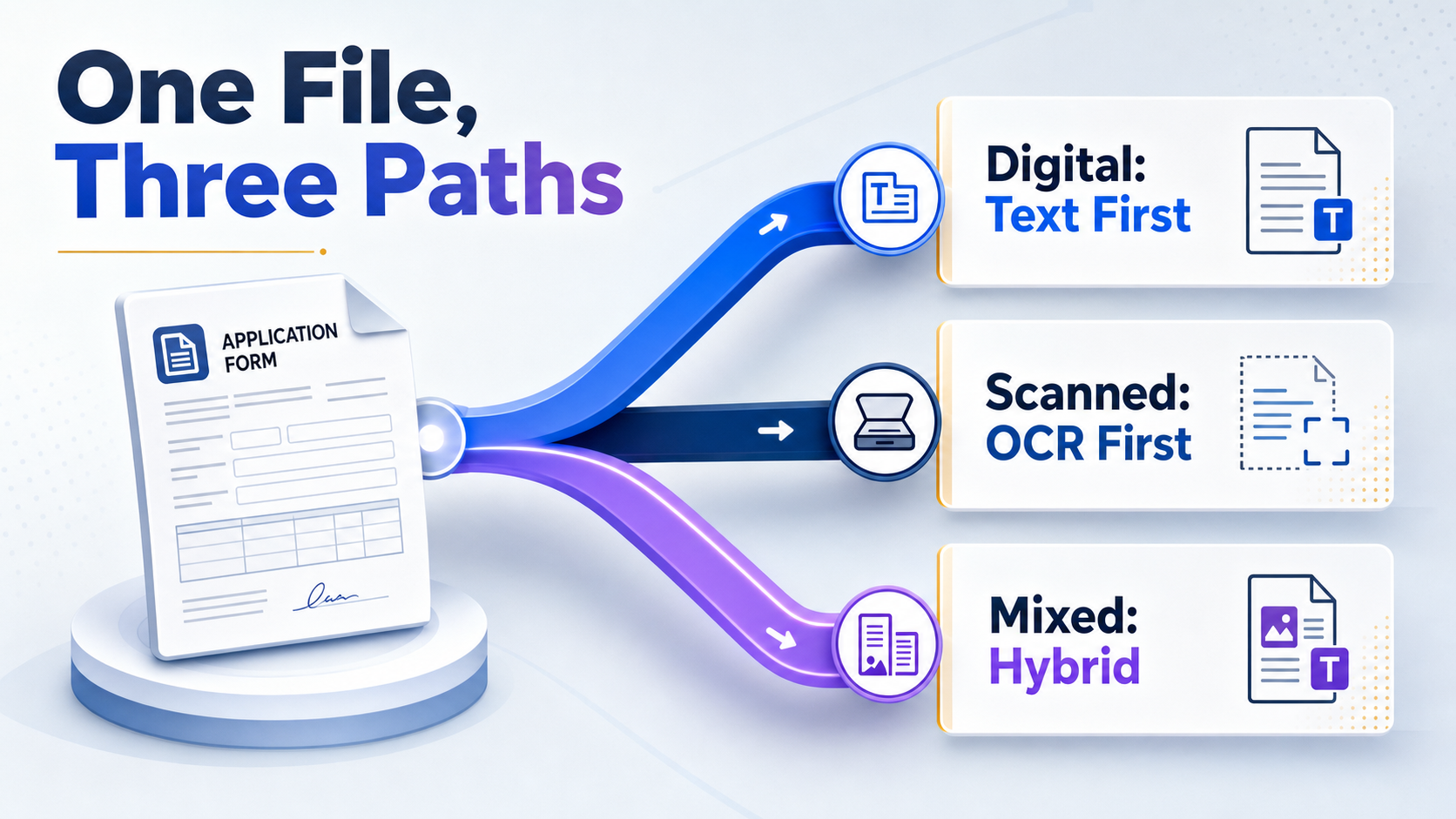
Open the file and try to highlight a paragraph, then copy it into a text editor. If clean words appear, the PDF has a real text layer and you can extract it directly. If you get nothing, garbled characters, or an image when you select, the page is scanned and will need OCR.
Step 2: Spot scanned and hybrid files
Scanned PDFs are pictures of pages with no underlying text. Hybrid files mix the two: a digital report with a scanned signature page, or text pages with embedded image charts. Check several pages, not just the first, because a file often switches type partway through.
Step 3: Judge layout complexity
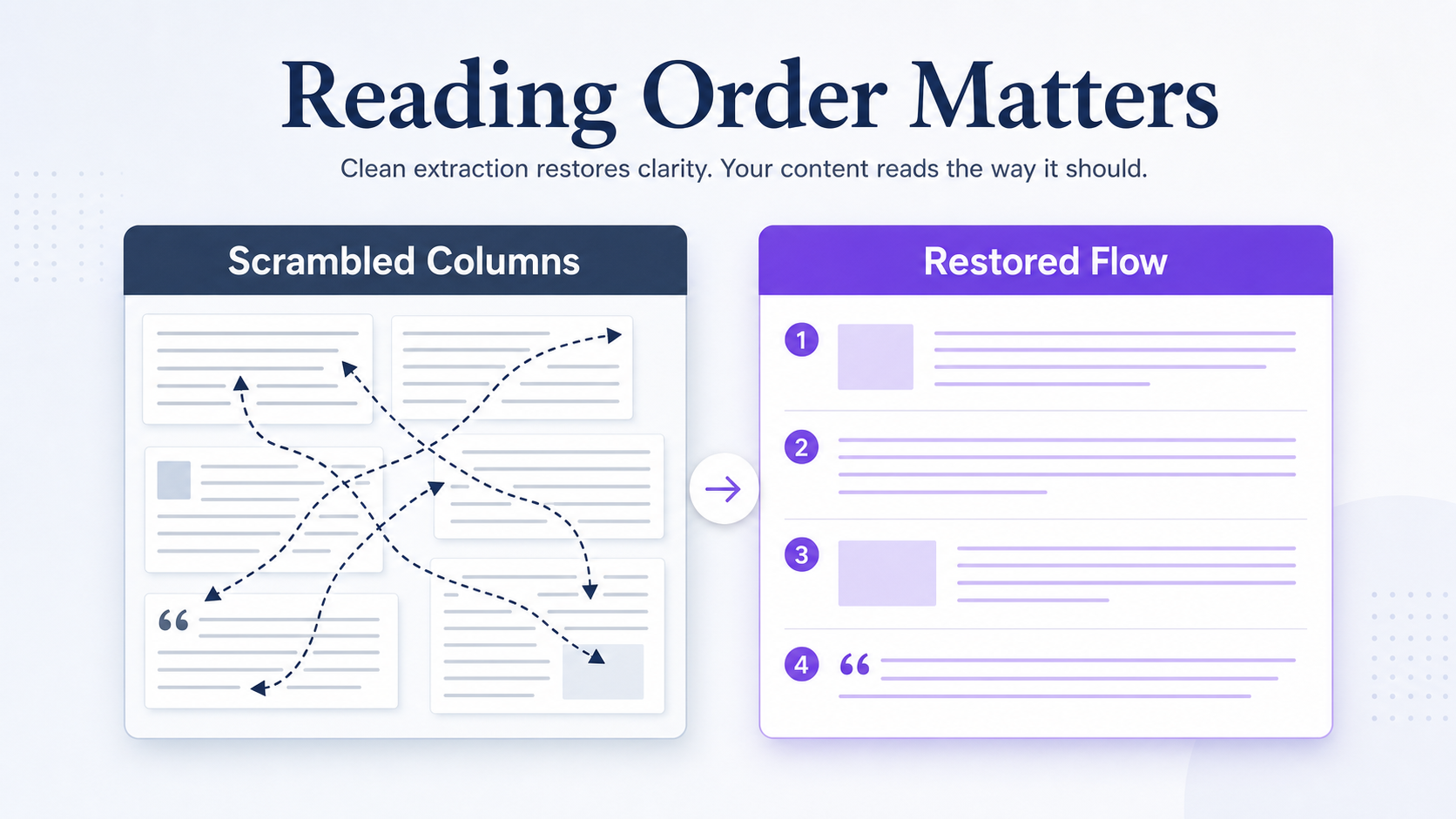
Multi-column pages, tables, footnotes, sidebars, and rotated text all change how cleanly text comes out. A two-column page extracted naively will interleave the columns and scramble every sentence. Note these before you run anything, so you pick a parser that respects reading order.
Step 4: Follow the decision tree
The choice is simple once you know the type. A digital PDF means text extraction first. A scanned PDF means OCR first. A mixed PDF means a hybrid pipeline that routes each page to the right method. Encryption, rotation, and poor scan quality each add a preprocessing step before extraction begins.
Extract the Raw Text Layer From Digital PDFs
Native PDFs hold real text, so the job is to pull it without scrambling the reading order. The risk here is silent: text that looks complete but arrives out of sequence.
Step 1: Use copy and search for spot checks
For a single file or a quick verification, highlight and copy the text directly, or use the in-reader search to confirm a brand appears. This is fine for one-off work. It does not scale, and it gives you no structured output, so reserve it for checks rather than production.
Step 2: Move to a parser for anything repeatable
When you have more than a handful of files, switch to a PDF library. Python options like PyMuPDF, pdfplumber, and PyPDF2 read the text layer programmatically and let you keep page numbers attached to every extracted line. That page mapping matters later, because a brand mention is only useful if you can point to where it appeared.
Step 3: Preserve reading order
Multi-column pages, headers, captions, tables, and footnotes are where extraction breaks. A naive pull reads left-to-right across both columns and produces nonsense. Choose a parser that detects columns and reading order, then check the output against the original layout before trusting it.
Step 4: Normalize the text
Raw extracted text carries broken line breaks, hyphenated word splits at line ends, and inconsistent spacing. Clean these before matching: join hyphenated words, collapse extra whitespace, and remove repeated running headers. In real content audits, column drift and duplicated headers are the biggest reasons an exact-match brand search returns noisy results.
Run OCR for Scanned or Image-Based PDFs
When you cannot select or copy the text, the page is an image and you need optical character recognition, the process that turns pictures of words into machine-readable text. OCR quality decides everything downstream, so input matters more than the engine.
Step 1: Confirm OCR is actually required
Run OCR only on pages that failed the text-selection test. Running it on a digital page that already has clean text wastes time and often produces a worse result than the native layer. Route page by page in hybrid files.
Step 2: Preprocess for accuracy
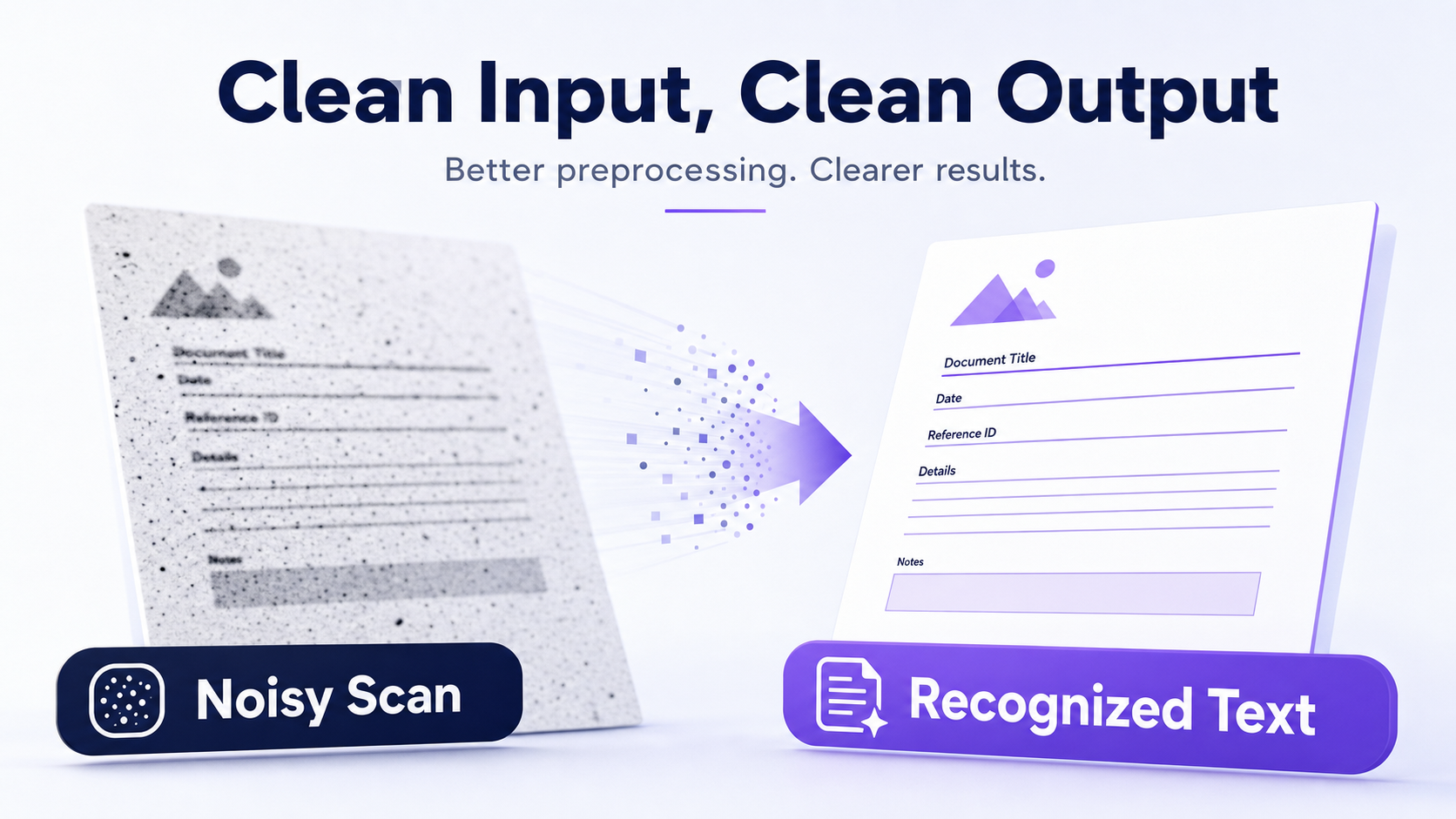
Recognition accuracy comes from clean input. Deskew tilted scans, denoise speckled backgrounds, correct low contrast, and use the highest-resolution source you have. OCR failures usually come from bad input quality, not bad software, so preprocessing often beats switching engines.
Step 3: Keep page mapping intact
Configure OCR to preserve which page each block of text came from. Without that mapping, you get a wall of words and no way to trace a brand mention back to its page and context. Page-level traceability is what makes the output auditable later.
Step 4: Flag the hard cases for review
Low-quality scans, handwriting, and rotated images produce unreliable text. Tesseract, the Adobe PDF Extract API, and Spark OCR all handle clean printed pages well, but none of them read messy handwriting reliably. Mark those pages for manual review rather than trusting a low-confidence read.
Find Brand Mentions With Keywords, Aliases, and NER
This is the step that separates a real workflow from a glorified search box. Finding the word is not the same as finding the brand, and the difference shows up as either missed mentions or a flood of false positives.
Step 1: Build a brand dictionary
List every form of each brand: the official name, common aliases, abbreviations, and the misspellings you see in the wild. A brand like “International Business Machines” appears as “IBM,” “I.B.M.,” and the full name across different documents. Miss one form and you miss real mentions.
Step 2: Start with exact matching, then normalize
Exact-match search is the baseline. It catches the obvious cases and nothing else. Add normalization on top: lowercase everything, strip punctuation, and collapse spacing so “Coca Cola,” “coca-cola,” and “CocaCola” all resolve to the same entity.
Step 3: Use regex for predictable variants
Regular expressions catch the patterns a flat list misses: hyphenated names, optional spacing, and trademark or registered symbols attached to a name. One well-written pattern can absorb a dozen alias entries and keep the dictionary manageable.
Step 4: Add NER for the ambiguous cases
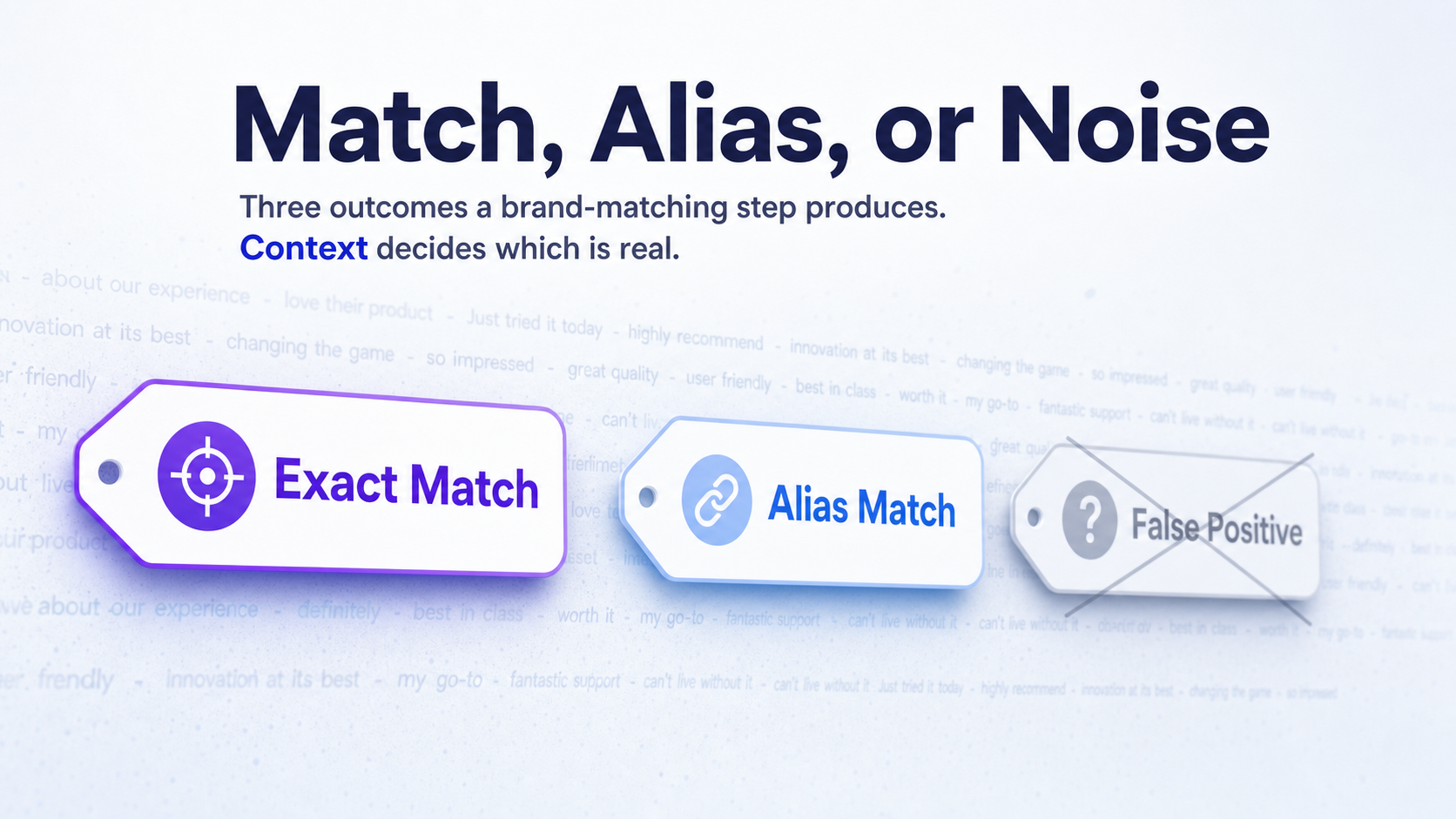
Named entity recognition, the technique that tags which words in a text are organizations rather than ordinary nouns, handles the pages where a keyword alone misfires. The strongest approach pairs exact matching with entity recognition, because matching alone over-fires on generic words while recognition alone misses informal aliases. The same logic applies whether you are reading PDFs or pulling brand references out of live web pages, where context decides what counts.
Step 5: Separate brands from generic terms
Product names, industry jargon, and common nouns will match your patterns and pollute the results. “Apple” in a fruit-supply contract is not the technology company. Filter these against context, because a match without context is a guess, not a mention.
Validate, Export, and Scale the Workflow
Raw hits are not results. The useful output is a reviewable dataset you can audit and re-run, not a raw count. This step turns matches into something trustworthy and then expands it from one file to hundreds.
Deduplicate and disambiguate
Collapse repeated mentions within the same page or document so a brand named ten times on one page counts as one located mention, not ten. Then apply disambiguation rules for generic words, competitor names, and context-free matches. A confidence or review queue catches the questionable cases before they reach a report. Once your dataset is clean, the same discipline carries into a wider brand mentions report that tracks coverage over time.
Choose the right export format
Each format serves a different downstream job. Pick based on what happens next.
| Format | Best for | Why |
|---|---|---|
| CSV | Analysis and pivot tables | Opens anywhere, easy to filter and count |
| Spreadsheet | Manual review queues | Lets reviewers flag and correct matches inline |
| JSON | Automation and pipelines | Carries nested context and feeds other tools cleanly |
Scale to batch processing
Point your pipeline at a folder instead of one file, route each PDF through the classify-extract-OCR-match-validate sequence, and write every result to the same schema. Schedule recurring runs when you need ongoing monitoring rather than a one-time pull. The pitfalls that show up at scale are predictable: poor OCR on low-quality scans, missed aliases, duplicate hits, and over-reliance on exact-match search. Each one traces back to a step above, which is why the order matters.
Confirm the expected outcome
Success looks like a clean, traceable list grouped by PDF, page, context, and mention type, with each entry tied to a normalized brand name and a confidence flag. If your output cannot answer “which brand, on which page, in what context,” it is not done yet. This same located-mention thinking applies when you hunt down unlinked brand references across the open web.
See where AI answers put your brand
Twenty minutes with a senior strategist: where the major engines point buyers in your category, who gets named instead of you, and a straight read on what a programme would change.
Book a strategy callFrequently Asked Questions
How do I extract text from a scanned PDF?
Run optical character recognition on it, because a scanned PDF is an image with no underlying text. First confirm the text is not selectable, then preprocess the scan by deskewing, denoising, and raising contrast before you run the OCR engine. Preprocessing usually improves accuracy more than switching engines, and keeping page numbers attached lets you trace each result back to its source.
Can ChatGPT extract information from a PDF?
Yes, ChatGPT can read an uploaded PDF and pull out brand mentions, and it handles ambiguous context better than a flat keyword search. It works well for a single document or a quick check. For hundreds of files, a scripted pipeline with page-level traceability is more reliable, because you can audit and re-run it consistently rather than re-prompting each time.
How do I find every brand mention in a long PDF?
Build a brand dictionary that covers official names, aliases, abbreviations, and misspellings, then run it against the full extracted text rather than scanning by eye. Exact-match search catches the obvious cases, and adding named entity recognition catches the informal references a list would miss. The combination is what gets you close to every mention instead of just the easy ones.
What is the best OCR method for PDFs with tables?
Use a layout-aware OCR engine that detects table structure, because a standard pass reads tables row-blind and merges cells into gibberish. The Adobe PDF Extract API and Spark OCR both preserve table layout during extraction. Verify the output against the original, since even strong engines can shift cell boundaries on dense or merged tables.
How do I avoid false positives when matching brand names?
Filter matches against context and disambiguate against generic words, because a brand name that is also a common noun will over-match. “Apple” in a produce document is not the technology company, so a match without surrounding context is a guess. Pair exact matching with entity recognition, add a confidence flag, and route low-confidence hits to a review queue before they reach a report.
Build It Once, Then Let It Run
The honest reality is that no single tool does this well for every PDF, and chasing one is what slows most teams down. The workflow is the product: classify the file, extract text cleanly, run OCR only where you need it, match brands with aliases and entity recognition, then validate and export.
Get that sequence right and the tool choice barely matters. Pick three sample PDFs of different types today, run each through the path it actually needs, and you will see exactly where your accuracy holds and where it leaks. For the terms used along the way, the brand mention and citation glossary keeps the definitions in one place.